JOETween - Procedural Node-Based Animation For Unity
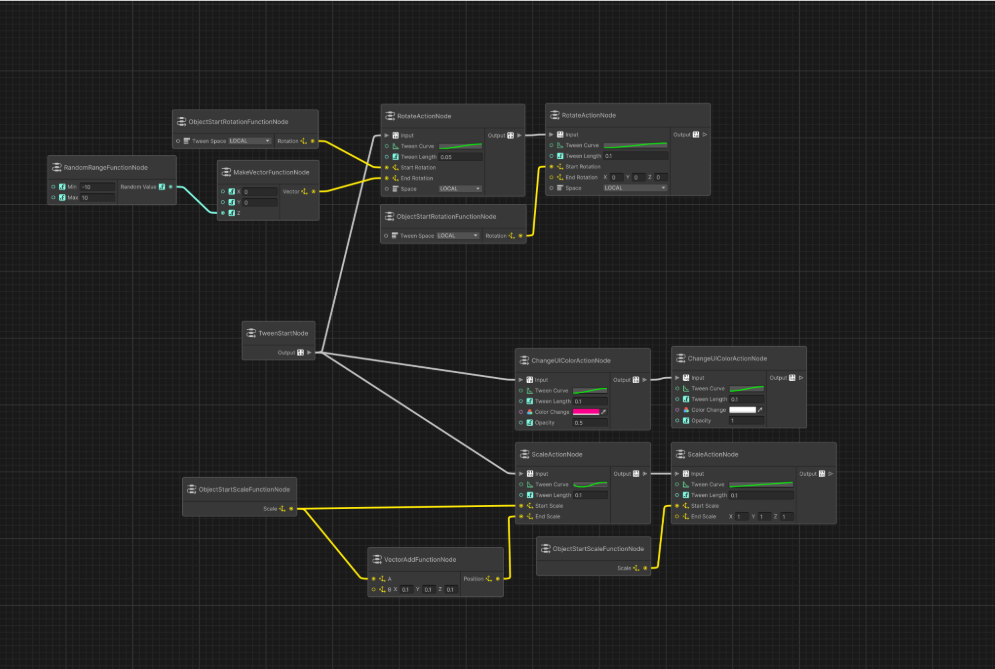
JOETween Can Be Found At https://github.com/JoeRickwood/JoeTween
JOETween was a project where I created a fully procedural node-based animation tool to be used inside of unity to create simple repeating or static animations to be applied to user-interface elements or in-world objects. I created this tool because I felt animating through code felt tedius and annoying when I needed to change a small aspect of an animation, thus the need for a new tool to allow for sequenced actions.
HOW IT WORKS
Behind the scenes, JOETween stores all actions as TweenActions, which is a base class allowing for a typed value to change over time based on an input curve and a time value, inherited class can allow for altering of different components within the UnityEngine such as Sprites, Transforms, Text, and Lights. because the system is abstracted quite alot, it allows for nearly limitless potential of additions and different things to allow tweening of.
HOW TO USE AND SIMPLE IMPLEMENTATION
Beginning Notes
- Currently, tweens run on Update pacing, meaning they will update along with all other objects.
- Tweens can be overridden by applying values to tweened objects in the LateUpdate step; this is similar to overriding animations from the AnimatorController
- Currently, there is limited support for math and the creation and modification of vectors from function nodes
- There are several ways to implement the JoeTween library into your project, as well as multiple ways of also linking the system up to actions, button pressed ect, etc. This is for the benefit of ease of use and the versatility it offers.
- I would recommend looking through some example graphs within the JoeTween->Examples folder
Creating A Procedural Graph
To create your first sequence graph, right-click in the assets panel and navigate to Create->JoeTween->TweenSequenceGraph, give it a name, and you should see that you have created your very own tween sequence graph. It should look something like the image shown below, You can double-click it to open it up in the graph editor, inspector window, and Begin editing your first graph.
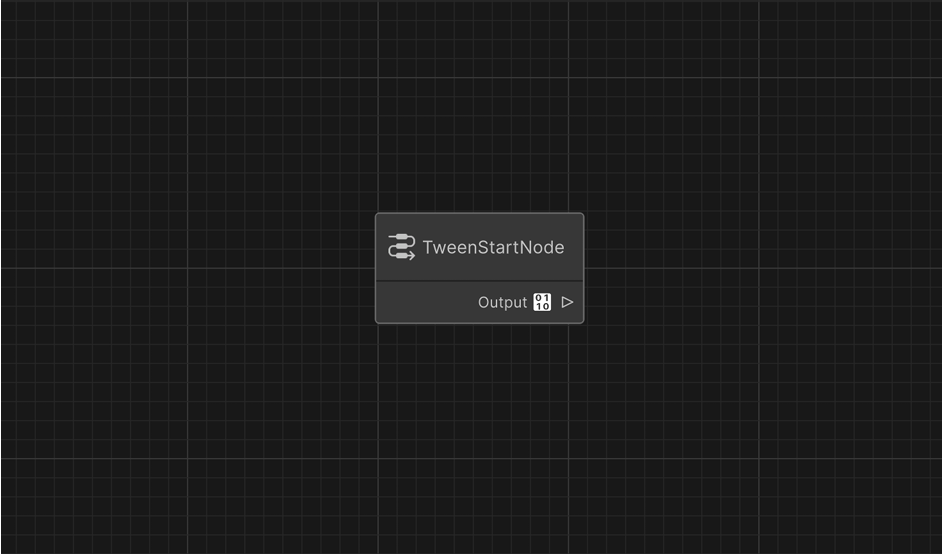
You will see that you will get an error, notifying you that “Add a StartNode in your Tween Sequence graph”, this is because there is currently no entrance point to the graph. Go ahead and create a start node and place it into your graph editor like so.
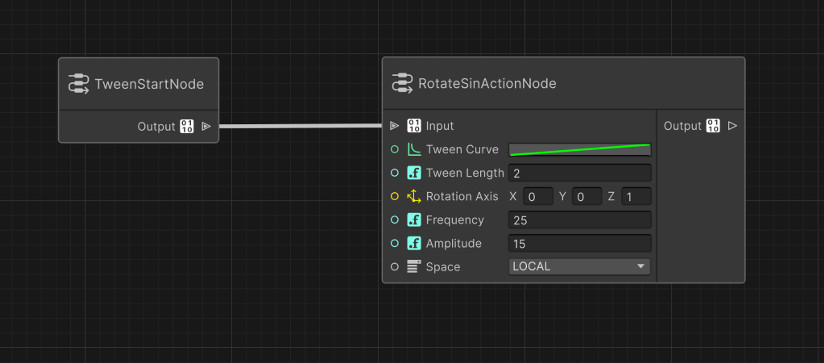
Now that we have a valid graph to start playing with, we can create some action nodes to create some cool behaviour. The example we will build today is a simple rotation wiggle on activating this tween. To do this, we can utilize the RotateSinActionNode. When created, you will see a list of variables to alter on this object, such as length, axis, frequency, and amplitude. These variables control how the action will play in the context of a transform object. Here is some useful information about each variable on this node:
TWEEN CURVE: controls the easing curve of the action playing
TWEEN LENGTH: the length in seconds that this action will play before continuing with the sequence
ROTATION AXIS: the axis to apply the rotation in, generally x is the left/right pointing axis, y is up/down, z is forward/backward
FREQUENCY: The frequency of the sine wave
AMPLITUDE: The amplitude in degrees of the rotation back and forth
SPACE: The object space to apply the action in, either world or local
To link this up to work in the easiest way possible, let's create a button in our canvas inside of Unity and create an onClick event on that button
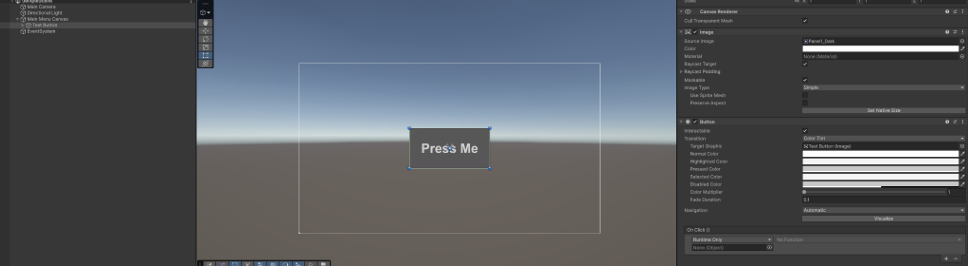
Inside the on-click event, we can assign the target object to be the TweenSequenceGraph asset just created and edited. We can then assign it the function call of TweenRuntimeGraph.Play and pass in our GameObject, we want to apply the tween to. You should now see how, when you press the button, the tween should play on the target object. However, an oversight in our logic is how the button does not return to the correct rotation; this is because of how sine waves work. To fix this, we can simply rotate back to our original rotation of 0, 0, 0.
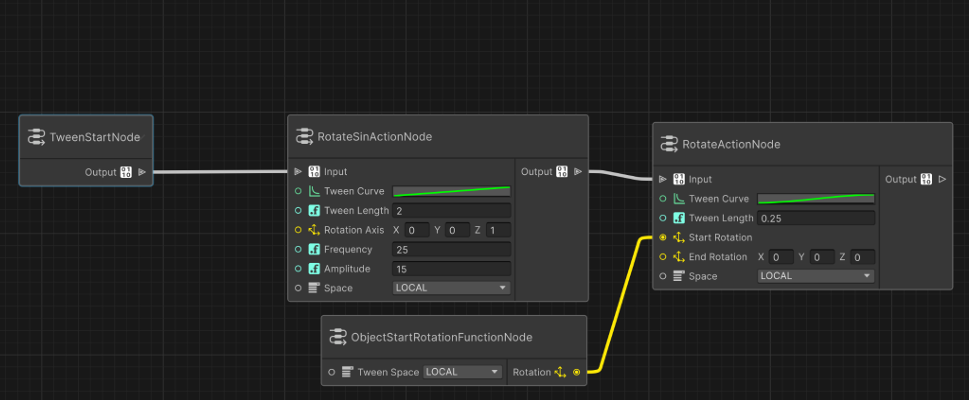
This is the setup for doing so. Notice how the ObjectStartRotationFunctionNode is played in the start rotation? That's because it caches the startRotation from the start of the action, not the entire tween graph. This will be updated in the future to include the option to change the step at which it saves. Congratulations! You have just made your first graph + application using JoeTween.
Closing Notes
- This document outlines the use of Joetween in the context of a button press; however, there are several ways to implement the tween calls utilizing the OnMouseOverTween and OnMousePressTween monobehaviour scripts.
- Tweens can also be created easily, although with slightly more process in a custom monobehaviour class and called directly to the tween manager by calling TweenManager.StartTween with the custom-created TweenAction class